AgentsPreview
Agents
Each workspace keeps its own saved ACP sessions and has one active session at a time. Sign in with that agent's subscription, never an API key.
Desktop chrome for the live session is the Agent tab. Mobile chrome for the picker is the Agents tab. Agent-Up does not collect API keys.
Pick an available agent to bind it to the workspace
Complete subscription sign-in if the agent asks
Prompt in the live session, or watch an unattended loop
Chrome
Desktop Chat · Mobile Agents
Where it differs
Desktop
Mobile
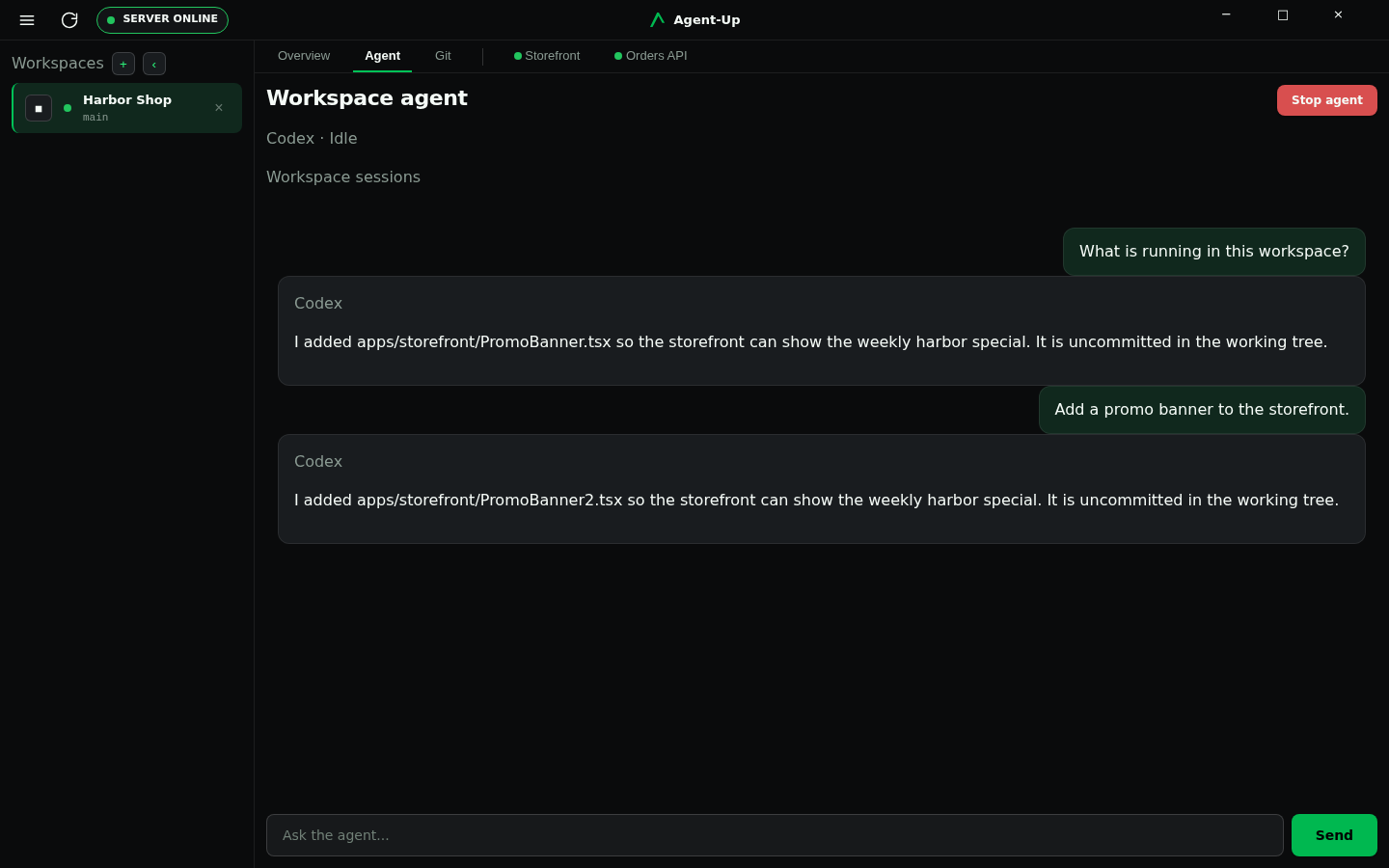
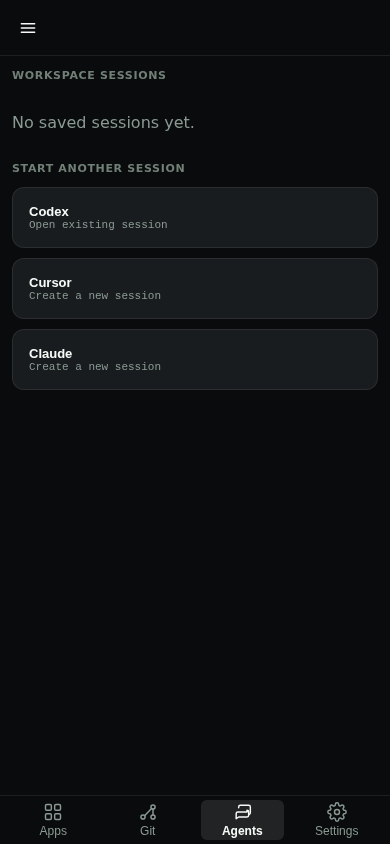
Workspace agent CLIs
Saved sessions from every enabled ACP agent appear together within the current workspace. Each row shows the agent, the agent-generated short description, and the branch last associated with the session. The live session is labeled Current. Select any other row to resume it. Sessions from another workspace never appear in this list.
Workspace agent chat uses the ACP agents built into the Server: Codex, Cursor, Claude, and OpenCode. The picker lists each one, enabled or not. The Server wraps those launches in Nix. Enable an agent from its row, Desktop capability chrome, or Mobile Settings. An agent whose software the Server cannot find cannot be enabled.
OpenCode
OpenCode runs against a model served by an Ollama-compatible API instead of a subscription, so it has no sign-in. Once it is enabled, its Settings card expands with three fields:
- Endpoint — the API's base URL, such as
http://localhost:11434. A bare host gets/v1added; an endpoint that already names a path is used as written. - Token — optional, for a hosted endpoint. It is stored on the Server and never shown again; leave the field empty to keep it.
- Model — the model name the endpoint serves, such as
qwen2.5-coder:7b.
Agent-Up gives OpenCode its own tools - workspaces, commits, verification, the browser, diagnostics, and decisions - so it can start and inspect the workspace it works in.
Until Endpoint and Model are set, the OpenCode row reads Needs setup. OpenCode asks before every edit and command, so it can be bound as an author or a reviewer and run unattended under a permission policy like the other agents.
Subscription sign-in
Sign in with the corresponding CLI's subscription login from Desktop or Mobile when the agent asks. Agent-Up runs that vendor's no-browser or device-code flow on the Server, shows the sign-in link (and Codex device code) in the client, and then starts ACP. An unavailable agent shows why: a disabled capability offers Enable on the row, missing software names what to install, and missing settings point to Settings.
Workspace-bound agent
Choosing an agent on Desktop binds that module to the workspace, then starts the session. On Mobile, the Agents + action opens a creation page of enabled modules; a successful start creates the bind, while a failed start stays on that page without leaving a stale bind. A workspace with no bound agent is normal, not an error.
Unattended loop
Autonomy is experimental and off by default. Enablement persists on the Server; the environment variable still wins when it is set. The workspace Settings tab on Desktop and Mobile shows the ordered Server and workspace precondition checklist, Enable autonomy, Activate, Cancel, and the typed terminal for how the loop stopped. The Desktop Agent tab and Mobile Agents show a one-line summary that opens it. When a workspace has no permission policy, Mobile offers Configure permissions for worktree reads, worktree writes, commands, and network access; anything not allowed stays blocked. In the command center, the checklist and its actions are under Settings › Chat, with a tab for each workspace, and the chat shows only the conversation. A message typed while a turn is running is steering for the next turn; it does not cancel the loop.
Team members
Every workspace on a Server is one team member, and each has its own checkout and its own running applications.
- Author writes code with Claude, Codex, or Cursor. It can read and change the repository and use the browser.
- Dev reviewer reviews code with the same coding agents. It can read the repository and start its workspace to see the change run, but cannot change the code or use the browser. Its checkout is read-only to the agent, so a change fails even if someone allows it.
- PM reviewer reviews the product. It never sees the code: it uses the running application through the browser, takes screenshots, and reports what a user would notice.
Coding agents run in a sandbox. They see their own checkout and their tools, never the Server's settings or another workspace. The Server needs bubblewrap for this. It is included when the Server runs from its Nix shell, the NixOS module, or the container image. On other Linux hosts, install the bubblewrap package. On macOS, agents are not confined to their checkout; run the Server on Linux when reviewers must not be able to change code.
The command center's Tasks page has three tabs. Issues is the queue authors take work from. Dev review and PM review list the proposals waiting on each kind of reviewer: those nobody has taken yet, those under review with the reviewer's name and revision, and those already reviewed. The first reviewer of a kind to take a proposal keeps it for every later push, and each push has to be reviewed again.
Only reviewers submit reviews, so only their comments become threads an author must address. A PM reviewer runs on a local Ollama-compatible model the Server talks to directly. Set AGENTUP_OLLAMA_MODEL on the Server, and AGENTUP_OLLAMA_URL when the model is not at http://127.0.0.1:11434, then choose Ollama (in-process) for that workspace.